GLips / Figma-Context-MCP
MCP server to provide Figma layout information to AI coding agents like Cursor
AI Architecture Analysis
This repository is indexed by RepoMind. By analyzing GLips/Figma-Context-MCP in our AI interface, you can instantly generate complete architecture diagrams, visualize control flows, and perform automated security audits across the entire codebase.
Our Agentic Context Augmented Generation (Agentic CAG) engine loads full source files into context, avoiding the fragmentation of traditional RAG systems. Ask questions about the architecture, dependencies, or specific features to see it in action.
Embed this Badge
Showcase RepoMind's analysis directly in your repository's README.

Repository Summary (README)
PreviewGive Cursor and other AI-powered coding tools access to your Figma files with this Model Context Protocol server.
When Cursor has access to Figma design data, it's way better at one-shotting designs accurately than alternative approaches like pasting screenshots.
<h3><a href="https://www.framelink.ai/docs/quickstart?utm_source=github&utm_medium=referral&utm_campaign=readme">See quickstart instructions →</a></h3>Demo
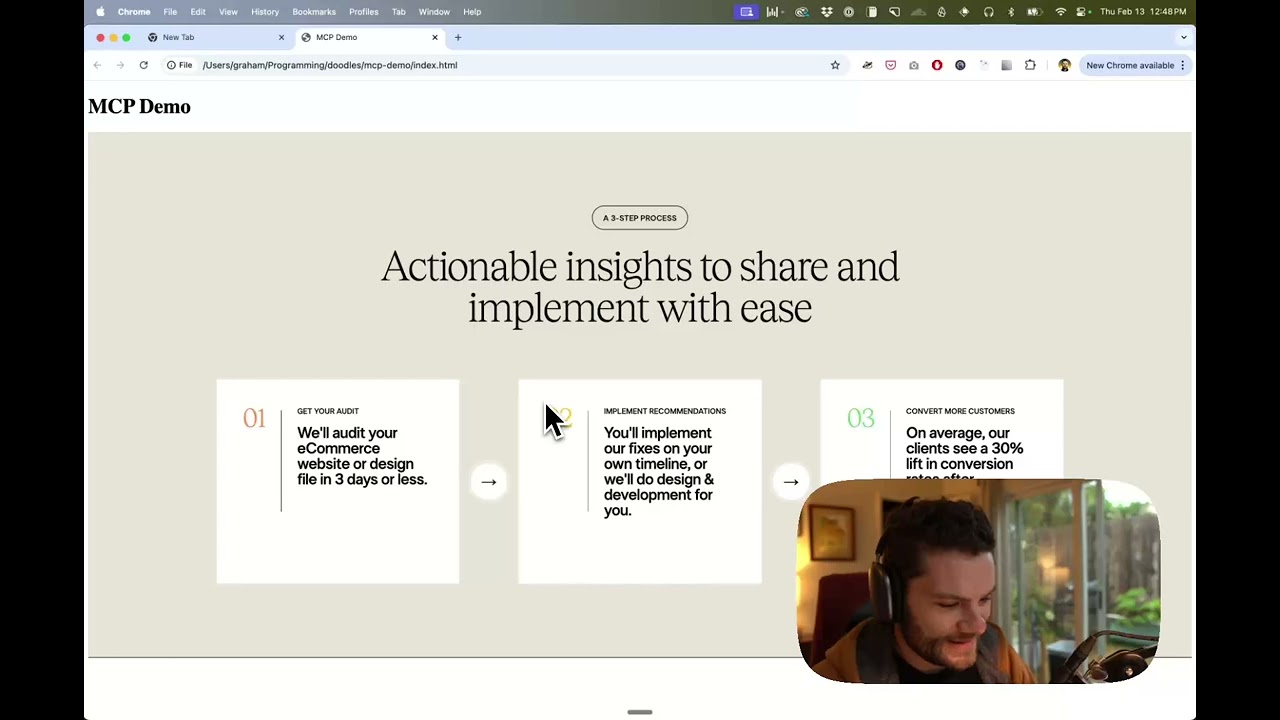
Watch a demo of building a UI in Cursor with Figma design data
How it works
- Open your IDE's chat (e.g. agent mode in Cursor).
- Paste a link to a Figma file, frame, or group.
- Ask Cursor to do something with the Figma file—e.g. implement the design.
- Cursor will fetch the relevant metadata from Figma and use it to write your code.
This MCP server is specifically designed for use with Cursor. Before responding with context from the Figma API, it simplifies and translates the response so only the most relevant layout and styling information is provided to the model.
Reducing the amount of context provided to the model helps make the AI more accurate and the responses more relevant.
Getting Started
Many code editors and other AI clients use a configuration file to manage MCP servers.
The figma-developer-mcp server can be configured by adding the following to your configuration file.
NOTE: You will need to create a Figma access token to use this server. Instructions on how to create a Figma API access token can be found here.
MacOS / Linux
{
  "mcpServers": {
    "Framelink MCP for Figma": {
      "command": "npx",
      "args": ["-y", "figma-developer-mcp", "--figma-api-key=YOUR-KEY", "--stdio"]
    }
  }
}
Windows
{
  "mcpServers": {
    "Framelink MCP for Figma": {
      "command": "cmd",
      "args": ["/c", "npx", "-y", "figma-developer-mcp", "--figma-api-key=YOUR-KEY", "--stdio"]
    }
  }
}
Or you can set FIGMA_API_KEY and PORT in the env field.
If you need more information on how to configure the Framelink MCP for Figma, see the Framelink docs.
Star History
<a href="https://star-history.com/#GLips/Figma-Context-MCP"><img src="https://api.star-history.com/svg?repos=GLips/Figma-Context-MCP&type=Date" alt="Star History Chart" width="600" /></a>
Learn More
The Framelink MCP for Figma is simple but powerful. Get the most out of it by learning more at the Framelink site.