iam-veeramalla / Jenkins-Zero-To-Hero
Install Jenkins, configure Docker as slave, set up cicd, deploy applications to k8s using Argo CD in GitOps way.
AI Architecture Analysis
This repository is indexed by RepoMind. By analyzing iam-veeramalla/Jenkins-Zero-To-Hero in our AI interface, you can instantly generate complete architecture diagrams, visualize control flows, and perform automated security audits across the entire codebase.
Our Agentic Context Augmented Generation (Agentic CAG) engine loads full source files into context, avoiding the fragmentation of traditional RAG systems. Ask questions about the architecture, dependencies, or specific features to see it in action.
Embed this Badge
Showcase RepoMind's analysis directly in your repository's README.

Repository Summary (README)
PreviewJenkins-Zero-To-Hero
Are you looking forward to learn Jenkins right from Zero(installation) to Hero(Build end to end pipelines)? then you are at the right place.
Installation on EC2 Instance
YouTube Video -> https://www.youtube.com/watch?v=zZfhAXfBvVA&list=RDCMUCnnQ3ybuyFdzvgv2Ky5jnAA&index=1
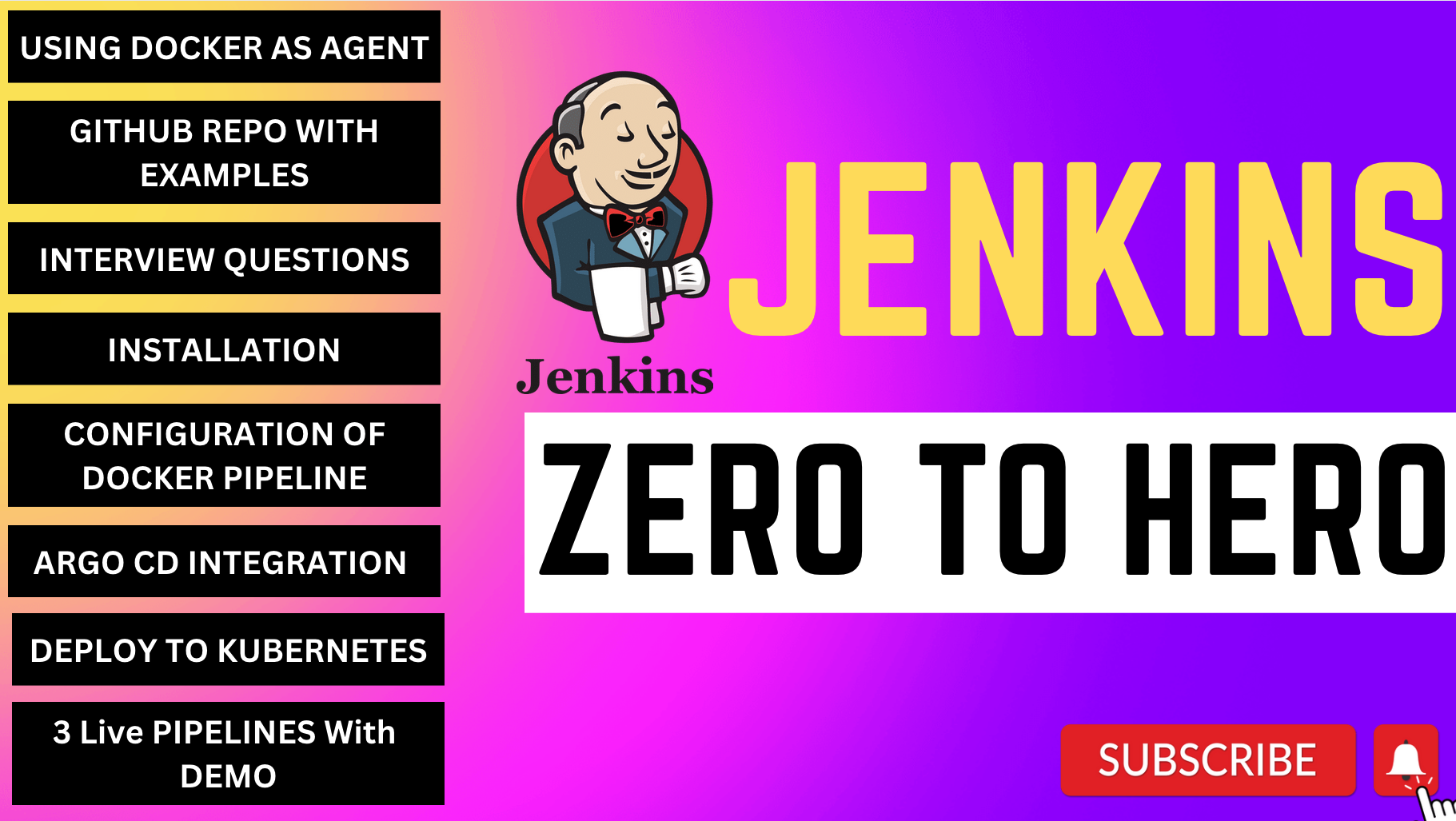
Install Jenkins, configure Docker as agent, set up cicd, deploy applications to k8s and much more.
AWS EC2 Instance
- Go to AWS Console
- Instances(running)
- Launch instances
Install Jenkins.
Pre-Requisites:
- Java (JDK)
Run the below commands to install Java and Jenkins
Install Java
sudo apt update
sudo apt install openjdk-17-jre
Verify Java is Installed
java -version
Now, you can proceed with installing Jenkins
curl -fsSL https://pkg.jenkins.io/debian/jenkins.io-2023.key | sudo tee \
  /usr/share/keyrings/jenkins-keyring.asc > /dev/null
echo deb [signed-by=/usr/share/keyrings/jenkins-keyring.asc] \
  https://pkg.jenkins.io/debian binary/ | sudo tee \
  /etc/apt/sources.list.d/jenkins.list > /dev/null
sudo apt-get update
sudo apt-get install jenkins
**Note: ** By default, Jenkins will not be accessible to the external world due to the inbound traffic restriction by AWS. Open port 8080 in the inbound traffic rules as show below.
- EC2 > Instances > Click on <Instance-ID>
- In the bottom tabs -> Click on Security
- Security groups
- Add inbound traffic rules as shown in the image (you can just allow TCP 8080 as well, in my case, I allowed
All traffic).
Login to Jenkins using the below URL:
http://<ec2-instance-public-ip-address>:8080 [You can get the ec2-instance-public-ip-address from your AWS EC2 console page]
Note: If you are not interested in allowing All Traffic to your EC2 instance
1. Delete the inbound traffic rule for your instance
2. Edit the inbound traffic rule to only allow custom TCP port 8080
After you login to Jenkins,
- Run the command to copy the Jenkins Admin Password - sudo cat /var/lib/jenkins/secrets/initialAdminPassword
- Enter the Administrator password
Click on Install suggested plugins
<img width="1291" alt="Screenshot 2023-02-01 at 10 58 40 AM" src="https://user-images.githubusercontent.com/43399466/215959294-047eadef-7e64-4795-bd3b-b1efb0375988.png">Wait for the Jenkins to Install suggested plugins
<img width="1291" alt="Screenshot 2023-02-01 at 10 59 31 AM" src="https://user-images.githubusercontent.com/43399466/215959398-344b5721-28ec-47a5-8908-b698e435608d.png">Create First Admin User or Skip the step [If you want to use this Jenkins instance for future use-cases as well, better to create admin user]
<img width="990" alt="Screenshot 2023-02-01 at 11 02 09 AM" src="https://user-images.githubusercontent.com/43399466/215959757-403246c8-e739-4103-9265-6bdab418013e.png">Jenkins Installation is Successful. You can now starting using the Jenkins
<img width="990" alt="Screenshot 2023-02-01 at 11 14 13 AM" src="https://user-images.githubusercontent.com/43399466/215961440-3f13f82b-61a2-4117-88bc-0da265a67fa7.png">Install the Docker Pipeline plugin in Jenkins:
- Log in to Jenkins.
- Go to Manage Jenkins > Manage Plugins.
- In the Available tab, search for "Docker Pipeline".
- Select the plugin and click the Install button.
- Restart Jenkins after the plugin is installed.
Wait for the Jenkins to be restarted.
Docker Slave Configuration
Run the below command to Install Docker
sudo apt update
sudo apt install docker.io
Grant Jenkins user and Ubuntu user permission to docker deamon.
sudo su -
usermod -aG docker jenkins
usermod -aG docker ubuntu
systemctl restart docker
Once you are done with the above steps, it is better to restart Jenkins.
http://<ec2-instance-public-ip>:8080/restart
The docker agent configuration is now successful.