srwi / EverythingToolbar
Everything integration for the Windows taskbar.
AI Architecture Analysis
This repository is indexed by RepoMind. By analyzing srwi/EverythingToolbar in our AI interface, you can instantly generate complete architecture diagrams, visualize control flows, and perform automated security audits across the entire codebase.
Our Agentic Context Augmented Generation (Agentic CAG) engine loads full source files into context, avoiding the fragmentation of traditional RAG systems. Ask questions about the architecture, dependencies, or specific features to see it in action.
Embed this Badge
Showcase RepoMind's analysis directly in your repository's README.

Repository Summary (README)
PreviewRead in other languages: English, 中文
<img src="EverythingToolbar/Images/AppIcon.ico" width="24"> EverythingToolbar
<a href="https://paypal.me/rumswinkel"><img src="https://img.shields.io/static/v1?label=Donate&message=%E2%9D%A4&logo=PayPal&color=%23009cde" height="25" /></a> <a href="https://ko-fi.com/stephanrwi"><img src="https://img.shields.io/static/v1?label=Buy%20me%20a%20coffee&message=%E2%98%95&logo=Ko-fi&color=%23FF5E5B" height="25" /></a> <a href="https://github.com/srwi/EverythingToolbar/releases/latest"><img src="https://img.shields.io/github/downloads/srwi/EverythingToolbar/total?color=critical" height="25" /></a> <a href="https://crowdin.com/project/everythingtoolbar"><img src="https://badges.crowdin.net/everythingtoolbar/localized.svg" height="25" /></a>
Instant file search integration for the Windows taskbar powered by Everything.
<img src="https://raw.githubusercontent.com/srwi/EverythingToolbar/develop/.github/images/demo.gif" alt="EverythingToolbar in action" width="80%">🌟 Features
Light & Dark Themes
EverythingToolbar seamlessly blends into Windows 10 and 11, automatically adjusting to your system theme.
<img src="https://raw.githubusercontent.com/srwi/EverythingToolbar/develop/.github/images/fast.png" alt="Light and dark themes" width="80%">Custom Search Filters
EverythingToolbar includes common search filters out of the box. For advanced users, it can synchronize with Everything's custom filters, giving you complete control over your search experience. Enable this feature by checking Use Everything filters in the EverythingToolbar's Filters settings.
<img src="https://raw.githubusercontent.com/srwi/EverythingToolbar/develop/.github/images/flexible.png" alt="Custom search filters" width="80%">Quick Search Options
Easily toggle search flags (match case, whole word, match path, and regex) to find your files with precision.
<img src="https://raw.githubusercontent.com/srwi/EverythingToolbar/develop/.github/images/on_point.png" alt="Quick toggles" width="80%">RegEx-Powered File Actions
Create custom Open with actions by navigating to Settings → Custom actions. Enable Automatically apply rules based on condition to execute commands automatically based on file type and regular expressions. Leave the regex field empty to display the action only in the context menu.
<img src="https://raw.githubusercontent.com/srwi/EverythingToolbar/develop/.github/images/custom_actions.png" alt="Custom action options" width="80%">Compatibility
EverythingToolbar works seamlessly on Windows 10 and Windows 11, and integrates perfectly with tools like ExplorerPatcher and StartAllBack for full deskband support on Windows 11.
<img src="https://raw.githubusercontent.com/srwi/EverythingToolbar/develop/.github/images/compatible.png" alt="Windows 10 screenshot" width="80%">Additional Features
- Access EverythingToolbar instantly via customizable global shortcut
- Drag and drop files directly from search results
- Preview files with QuickLook or Seer integration
- Support for custom Everything instance names
Keyboard Shortcuts
| Shortcut | Function |
|---|---|
| <kbd>↑</kbd> / <kbd>↓</kbd> | Navigate search results |
| <kbd>Ctrl</kbd> + <kbd>↑</kbd> / <kbd>↓</kbd> | Navigate search history (if enabled) |
| <kbd>Enter</kbd> / <kbd>Click</kbd> | Open file or folder |
| <kbd>Ctrl</kbd> + <kbd>Enter</kbd> / <kbd>Click</kbd> | Open containing folder |
| <kbd>Shift</kbd> + <kbd>Enter</kbd> / <kbd>Click</kbd> | Open in Everything |
| <kbd>Ctrl</kbd> + <kbd>Shift</kbd> + <kbd>C</kbd> | Copy full path to clipboard |
| <kbd>Alt</kbd> + <kbd>Enter</kbd> / <kbd>Click</kbd> | Show file properties |
| <kbd>Ctrl</kbd> + <kbd>Shift</kbd> + <kbd>Enter</kbd> / <kbd>Click</kbd> | Run as administrator |
| <kbd>Shift</kbd> + <kbd>Right Click</kbd> | Open system context menu |
| (<kbd>Shift</kbd> +) <kbd>Tab</kbd> | Cycle through filters |
| <kbd>Ctrl</kbd> + <kbd>0-9</kbd> | Select filter by number |
| <kbd>Space</kbd> | Preview file in QuickLook |
| <kbd>Win</kbd> + <kbd>Alt</kbd> + <kbd>S</kbd> | Focus search box (customizable) |
📦 Installation
Prerequisites
- Windows 10 or Windows 11
- Everything ≥ 1.4.1 installed and running
Note: The Lite version of Everything is not supported
Install EverythingToolbar
Choose one of the following installation methods:
- Installer: Download from GitHub Releases
- winget:
winget install srwi.everythingtoolbar.launcherorwinget install srwi.everythingtoolbar.deskband
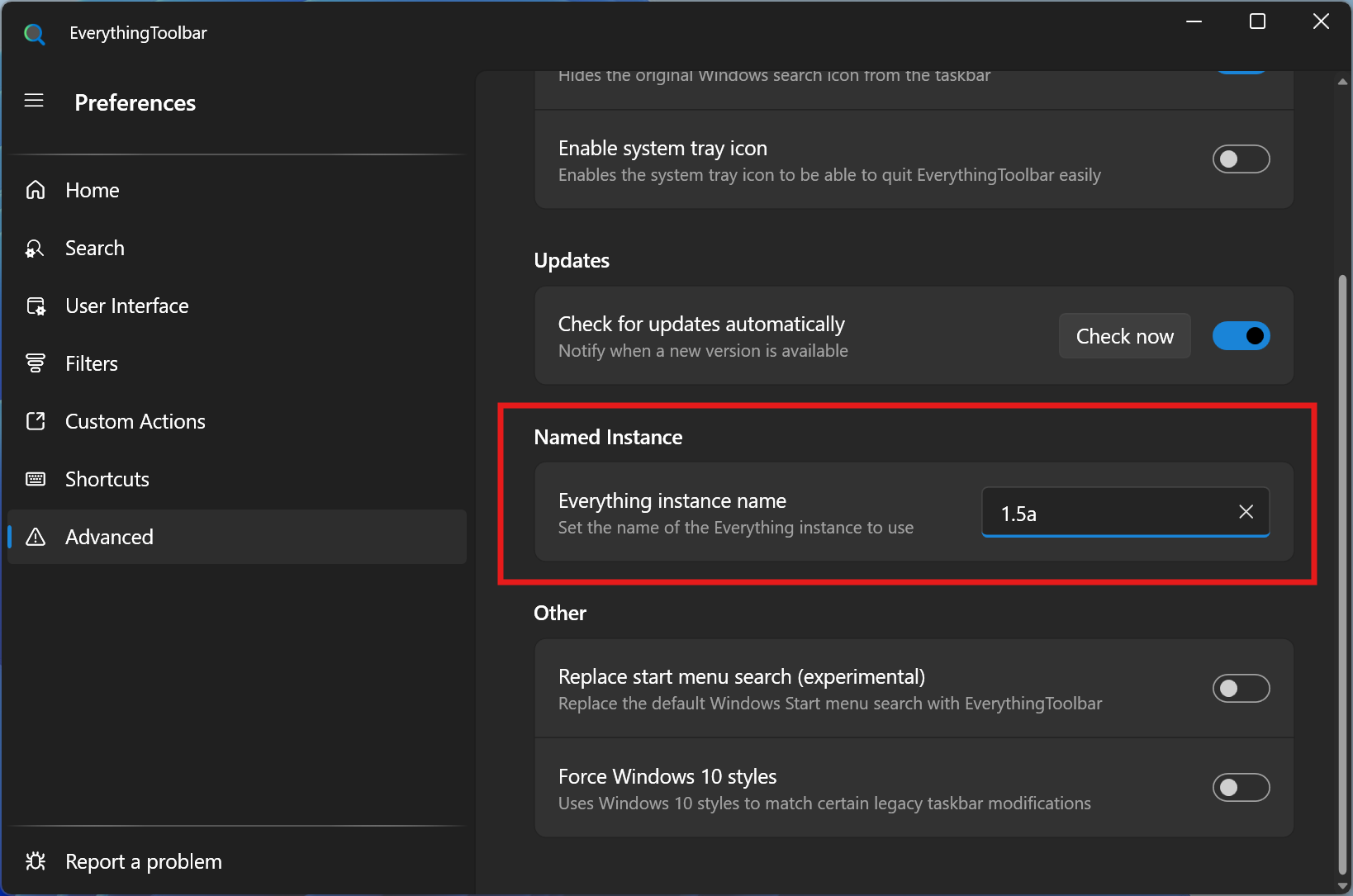
Important: For Everything 1.5a users, set the instance name to
1.5ain EverythingToolbar's advanced settings (Settings → Advanced → Everything instance name). (Screenshot)
⚙️ Setup
Launcher (Taskbar Icon)
Recommended for unmodified Windows 11 installations
After installation on Windows 11, the setup assistant will guide you through the configuration process.
If the setup assistant doesn't start automatically, search for EverythingToolbar in the Windows Start menu.
For Windows 10 users who prefer the search icon (not recommended), search for EverythingToolbar.Launcher.exe, start it manually and follow the setup process.
Deskband
Recommended for Windows 10 or when using ExplorerPatcher / StartAllBack
After installation on Windows 10:
- Right-click the taskbar and select EverythingToolbar from the Toolbars context menu
You may need to open the context menu twice for EverythingToolbar to appear
- Unlock the taskbar to adjust size and position (demonstration video)
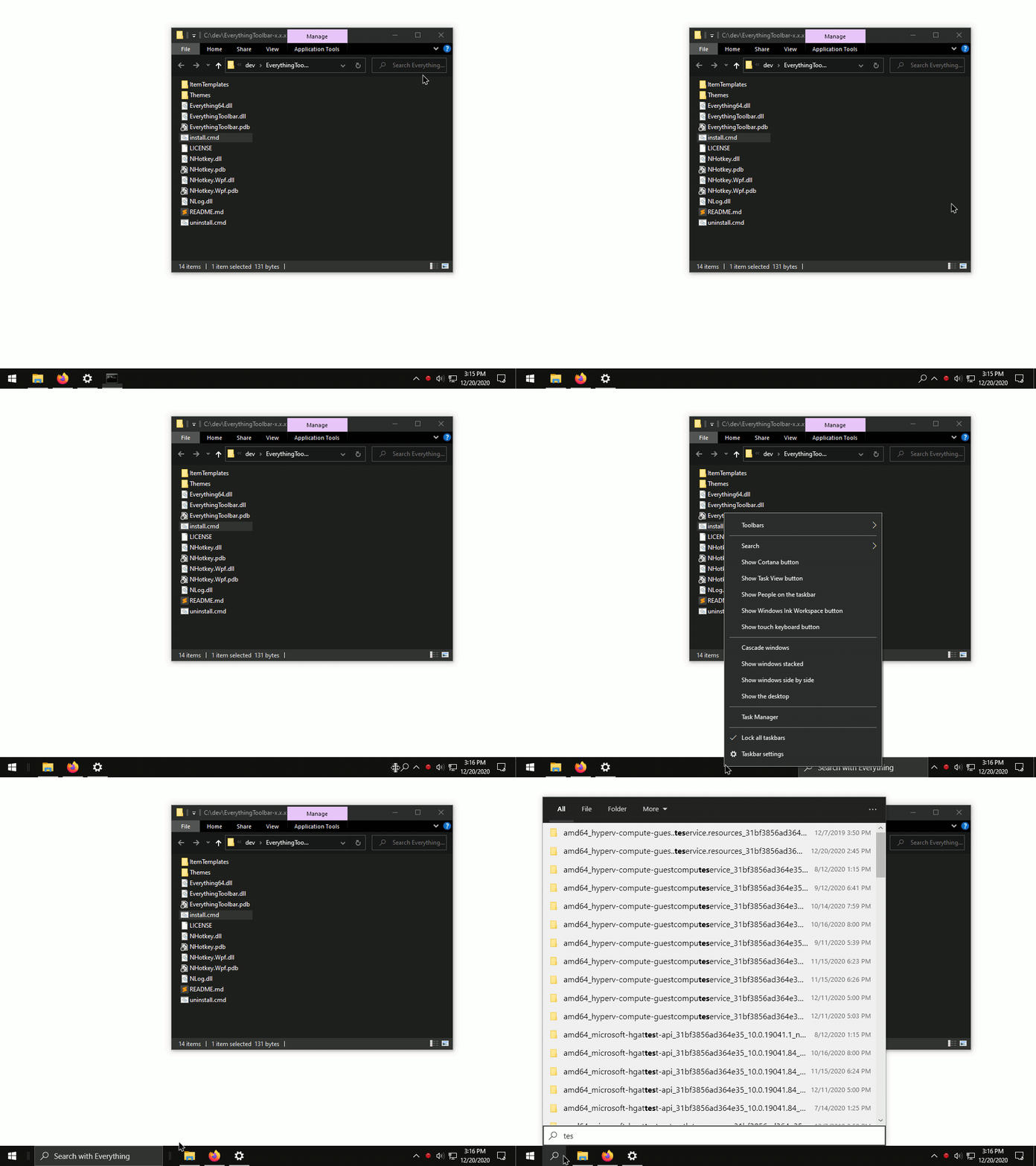
Windows 11 users: The search icon setup assistant starts automatically after installation. To use the deskband instead (only recommended with ExplorerPatcher/StartAllBack), close the assistant and end EverythingToolbar's background process via the system tray.
For troubleshooting and additional setup help, see the FAQ.
🛠️ Development
Building from Source
- Open the solution in Visual Studio with .NET 8.0 support
- Disable code signing in project properties
- Choose your build target:
- Deskband: Build
EverythingToolbar.Deskbandproject, then run/tools/install_deskband.cmdas administrator - Search icon: Set
EverythingToolbar.Launcheras startup project and start debugging
- Deskband: Build
🤝 Contributing
All types of contributions are welcome! Whether you're reporting bugs, requesting features, or submitting pull requests, your help is appreciated.
How to Contribute
- Check existing issues before creating new ones
- Help with open issues and discussions
- Translate EverythingToolbar into your language
💖 Support
If you're enjoying EverythingToolbar, I'd be truly grateful for your support! You can show your appreciation by giving a star on GitHub or making a donation:
❓ FAQ
For frequently asked questions, troubleshooting guides, and detailed configuration instructions, visit the FAQ.